
Hyprland: Dynamically Theme Wayle With Matugen
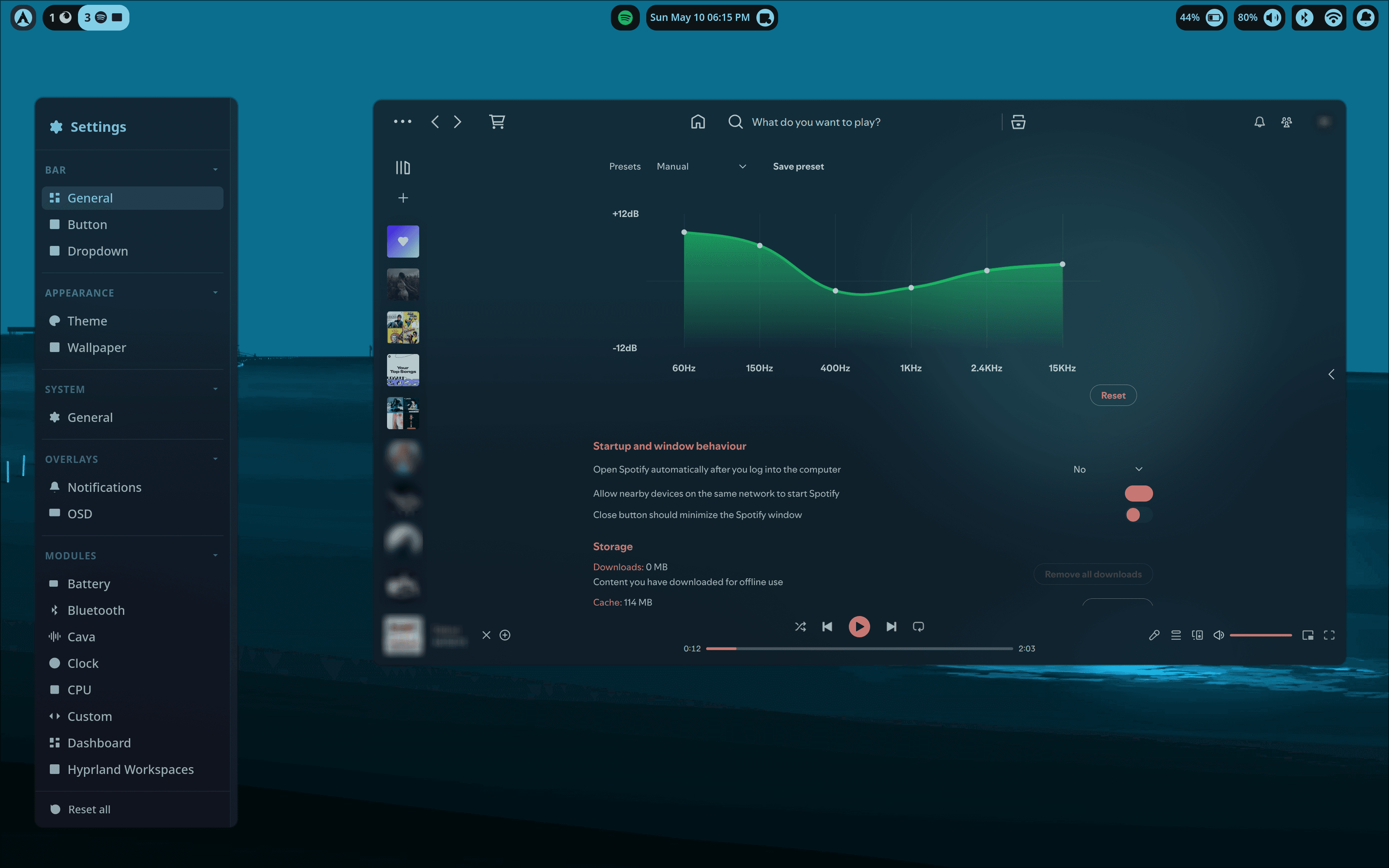
For those who don't know, Wayle is a project from the same creator as Hyprpanel, which is apparently going to be deprecated soon. Probably because of that, I couldn't find a proper theming guide anywhere either. So here we are.
This guide themes Wayle using Matugen instead of Wayle's built-in integration because:
it's simpler
gives you actual control
works like every other sane Matugen setup
doesn't force Wayle to become your wallpaper manager too for absolutely no reason.
No overengineered “ecosystem” nonsense. Just generate colors and move on with your life.
Install Dependencies
You need both matugen and wayle installed.
yay -S matugen wayle-bin
Once installed, you can control Wayle using:
wayle panel start
wayle panel stop
wayle panel restart
Wayle usually hot reloads configs automatically, but if it decides to act like a KDE app from 2014:
wayle panel restart
Now Wayle should be running.
Setup Matugen Theming
Step 1: Add Wayle Template to Matugen
Edit:
~/.config/matugen/config.toml
Add:
[templates.wayle]
input_path = "~/.config/matugen/templates/wayle.toml"
output_path = "~/.config/wayle/matugen/colors.toml"
This tells Matugen:
where the template lives
where to dump generated colors
Nothing magical. Just file generation.
Step 2: Create the Wayle Matugen Template
Create:
~/.config/matugen/templates/wayle.toml
Add:
[styling.palette]
primary = "{{ colors.primary.default.hex }}"
fg = "{{ colors.primary.default.hex }}"
fg-muted = "{{ colors.secondary.default.hex }}"
elevated = "{{ colors.background.default.hex }}"

[modules.dashboard]
icon-color = "{{ colors.background.default.hex }}"
icon-bg-color = "{{ colors.primary.default.hex }}"

[modules.hyprland-workspaces]
container-bg-color = "{{ colors.background.default.hex }}"
active-color = "{{ colors.primary.default.hex }}"

[modules.systray]
button-bg-color = "{{ colors.background.default.hex }}"

[modules.clock]
label-color = "{{ colors.primary.default.hex }}"
button-bg-color = "{{ colors.background.default.hex }}"
icon-color = "{{ colors.background.default.hex }}"
icon-bg-color = "{{ colors.primary.default.hex }}"

[modules.battery]
label-color = "{{ colors.primary.default.hex }}"
button-bg-color = "{{ colors.background.default.hex }}"
icon-color = "{{ colors.background.default.hex }}"
icon-bg-color = "{{ colors.primary.default.hex }}"

[modules.bluetooth]
label-color = "{{ colors.primary.default.hex }}"
button-bg-color = "{{ colors.background.default.hex }}"
icon-color = "{{ colors.background.default.hex }}"
icon-bg-color = "{{ colors.primary.default.hex }}"

[modules.network]
label-color = "{{ colors.primary.default.hex }}"
button-bg-color = "{{ colors.background.default.hex }}"
icon-color = "{{ colors.background.default.hex }}"
icon-bg-color = "{{ colors.primary.default.hex }}"

[modules.volume]
label-color = "{{ colors.primary.default.hex }}"
button-bg-color = "{{ colors.background.default.hex }}"
icon-color = "{{ colors.background.default.hex }}"
icon-bg-color = "{{ colors.primary.default.hex }}"

[modules.microphone]
label-color = "{{ colors.primary.default.hex }}"
button-bg-color = "{{ colors.background.default.hex }}"
icon-color = "{{ colors.background.default.hex }}"
icon-bg-color = "{{ colors.primary.default.hex }}"

[modules.media]
label-color = "{{ colors.primary.default.hex }}"
button-bg-color = "{{ colors.background.default.hex }}"
icon-color = "{{ colors.background.default.hex }}"
icon-bg-color = "{{ colors.primary.default.hex }}"

[modules.notification]
label-color = "{{ colors.primary.default.hex }}"
button-bg-color = "{{ colors.background.default.hex }}"
icon-color = "{{ colors.background.default.hex }}"
icon-bg-color = "{{ colors.primary.default.hex }}"

[modules.window-title]
label-color = "{{ colors.primary.default.hex }}"
button-bg-color = "{{ colors.background.default.hex }}"
icon-color = "{{ colors.background.default.hex }}"
icon-bg-color = "{{ colors.primary.default.hex }}"
This is where the actual wallpaper-based colors get mapped into Wayle. You can experiment with different Material colors if you want.
Step 3: Import Generated Colors Into Wayle
Edit:
~/.config/wayle/config.toml
Add:
imports = ["./matugen/colors.toml"]

[bar]
bg = "transparent"

button-variant = "icon-square"
padding-ends = 0.8
button-icon-size = 0.8
button-label-size = 0.8
button-rounding = "lg"
button-icon-position = "end"

[[bar.layout]]
monitor = "*"
show = true
left = [
    "dashboard",
    "hyprland-workspaces",
]
center = [
    "systray",
    "clock",
]
right = [
    "battery",
    "volume",
    { name = "group", modules = [
    "bluetooth",
    "network",
] },
    "notifications",
]

# modules
[modules.hyprland-workspaces]
app-icons-show = true
icon-size = 0.70
label-size = 0.80

[modules.network]
label-show = false

[modules.bluetooth]
label-show = false

[modules.notification]
label-show = false
This imports the generated Matugen colors dynamically.
Also removes the giant background bar because personally I think it looks cleaner without turning the top of your screen into a solid rectangle block.
Step 4: Generate Theme From Wallpaper
Run:
matugen image ~/Pictures/Wallpapers/OGs/cyan-moon.png
That's it.
Your Wayle theme should now follow your wallpaper colors automatically.
Extend Theme to Support More Modules
This setup only themes the modules you explicitly define.
And yes, that means you need to add modules manually one by one because currently Wayle's theming structure is very module-centric. Slightly annoying, but manageable.
To see all available modules and their default values:
wayle config default --stdout
This dumps the full default config.
For example, you'll see something like:
[modules.hyprland-workspaces]
workspace-padding = 0.5
icon-size = 1.0
label-size = 1.0
workspace-ignore = []
active-indicator = "background"
active-color = "accent"
occupied-color = "fg-muted"
empty-color = "fg-subtle"
container-bg-color = "bg-surface-elevated"
border-show = false
border-color = "border-default"
You only care about theme-related values here.
So take the color fields and map them inside your Matugen template:
[modules.hyprland-workspaces]
container-bg-color = "{{ colors.background.default.hex }}"
active-color = "{{ colors.primary.default.hex }}"
That's basically the workflow:
Find module defaults
Copy color-related params
Replace them with Matugen variables
Repeat until your rice reaches enlightenment
Or until you forget what sunlight looks like.
You can keep adding all the modules you use this way.
Hopefully Wayle eventually gets a more global theming structure instead of handling everything per-module, but for now this works perfectly fine.
Why Not Use Wayle's Built-In Matugen Integration?
Because honestly:
It's more complicated than it needs to be
Theme generation should be handled by Matugen, not the bar itself
It reduces flexibility
You basically end up coupling wallpaper management to Wayle too
This approach already matches how most people theme the rest of their setup
If you already use Matugen across your system, this keeps everything consistent instead of introducing another weird abstraction layer nobody asked for.
Dotfiles
You can find my full config here along with other rice-related stuff:
If you improve the config or find a cleaner approach, let me know. There's probably still a better way to structure some of this before Wayle's config evolves further.